

Are you tired of waiting for your developers just to add a simple tracking code to your website? Or worse, editing your website’s code yourself and hoping you don’t break something?
In this case, Google Tag Manager (GTM) solves this problem. With the help of GTM, you can add and manage all of your tracking codes from a single dashboard without the need for coding knowledge or a developer in your team to set up.
In this easy-to-follow guide, learn what GTM is, why it matters, and how to set up your first tag.
What You'll Need Before You Start
Before setting up Google Tag Manager, make sure you have:
- A website where you can add code snippets (WordPress, Shopify, custom site, etc.)
- A Google Analytics 4 (GA4) property already created (create one here if you haven’t)
- Your GA4 Tag ID (Admin > Data Streams > web stream > Tagging Instructions)
- Access to edit your website’s code (or access to your site’s header/footer settings)
What is Google Tag Manager?
With Google Tag Manager (GTM), you can manage tracking codes from a single dashboard.
If you’re completely new to GTM, you can first read our Understanding the Basic Overview of GTM guide for a deeper explanation of how it works.
You can manage all of your tracking scripts within GTM, which eliminates all the need to manually add your code to the website each time you want to track something within the page.
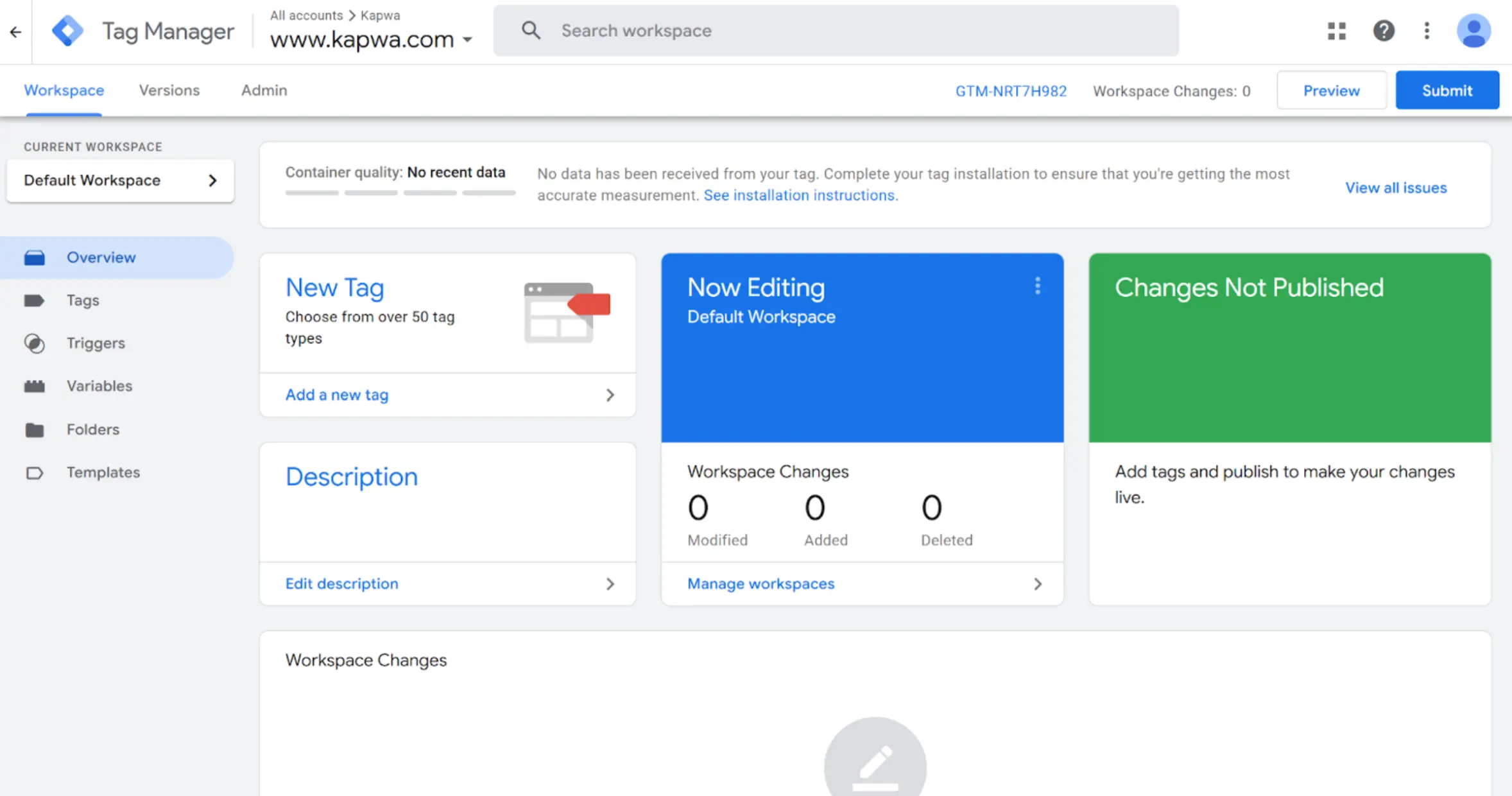
Google Tag Manager is basically a dashboard that assists you in managing all your tracking codes from one single place. This means that instead of putting tracking codes on your website every time you want to track something, you can do everything from the Google Tag Manager dashboard.
Key advantages:
- Make changes to your tracking codes without modifying your website code
- Use a single dashboard to manage analytics, ad pixels, and conversion tracking
- Track user behavior such as button clicks, form submissions, and purchases
- Test changes before making them live
Common applications or usages:
- Implement Google Analytics 4 (GA4) or Facebook Pixel
- Add Google Ads conversion tracking or other conversion tracking pixels
- Track individual button clicks or downloads
- Track form submissions
- Record e-commerce transactions
Key Google Tag Manager Concepts
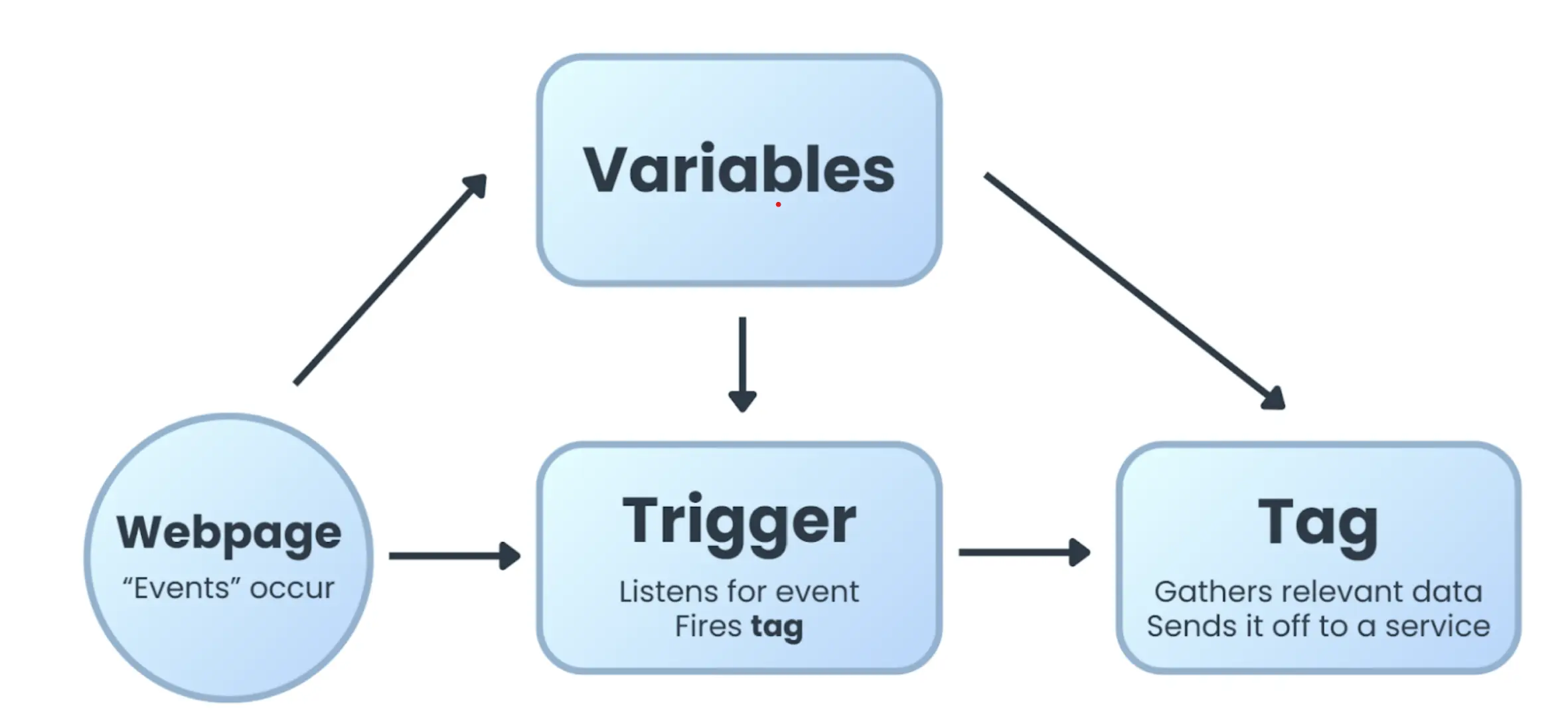
Before learning how to use GTM, you need to understand three core components.
1. Tags
Tags are the tracking codes you want to run on your website.
Examples:
- Google Analytics
- Google Ads conversion tag
- Facebook Pixel
2. Triggers
Triggers decide when a tag should fire.
Examples:
- When a page loads
- When a button is clicked
- When a form is submitted
3. Variables
Variables provide extra information for tags and triggers.
Examples:
- Page URL
- Click text
- Scroll depth
How to Set Up Google Tag Manager (Step-by-Step)
Step 1: Create a GTM Account
- Use a browser and redirect to tagmanager.google.com
- Press the Create Account button
- Input the account name and website
Select the Web as your platform of your choice
Step 2: Use and Install the GTM Code to your website
With the GTM account in hand, you’ll see two code snippets on your screen. These code snippets are both to be added to the website.
This is the code placement as follows:
- First code snippet. Paste the snippet inside the <head> section (as high as possible)
- Second code snippet. Paste the snippet just right after the opening <body> tag
How to add the GTM Code for each Platform?
WordPress (with a theme that supports code injection):
- Navigate to the WordPress admin dashboard
- Redirect to Appearance > Theme File Editor
- Look for the file named header.php
- Then paste the first code snippet just right before the </head> tag
- At the same time, paste the second code snippet just right after <body>
- Lastly, click the Update File button
WordPress:
- Install the free plugin GTM4WP.
- Go to Settings > Google Tag Manager
- Paste your GTM container ID (e.g., GTM-XXXXXXX)
- Save changes—the plugin auto-adds code to head/body and supports WooCommerce/events.
Shopify:
- Go to Online Store > Themes
- Click Actions > Edit code
- Open theme.liquid
- Paste the first snippet before </head>
- Paste the second snippet right after <body>
- Click Save
Squarespace:
- Go to Settings > Advanced > Code Injection
- Header: Paste first snippet
- Footer: Paste second snippet (handles body placement)
- Click Save
Note: Test in Preview mode; for advanced needs, add Code Blocks per page.
Wix:
- Proceed to Settings > Custom Code
- Click the button that says + Add Custom Code
- Paste the first code snippet from earlier, set it to load in Head, and then select All pages
- Repeat then, for the second code snippet, and then set it to Body – start
- Click Apply
Custom HTML site:
- Open your site’s HTML files in a code editor
- Paste the snippets in the locations described above
- Save and upload to your server
How to verify it's installed:
After adding the code, visit your website, right-click, and select View Page Source. Search for “googletagmanager.com” if there are instances on the page source.
Step 3: Add Your First Tag (Google Analytics 4)
- In Google Tag Manager, navigate in the dashboard and click the button Tags > New
- Choose Google tag
- Then, enter your GA4 Tag ID (find it in GA4: Admin > Data Streams > your web stream > Tagging Instructions)
- Set the trigger to All Pages
- Click the Save button
This sends page view data to Google Analytics 4.
Step 4: Test Your Tag with Preview Mode
Before publishing your changes, always test your tags using the Preview mode. This prevents any further broken tracking from going live. Just in making sure.
How does the Preview mode work in GTM?
This opens a debug panel showing which tags fire on your site in real time. The following includes:
- Which of the tags are fired
- Which of the triggers are activated by them
- What variables were used by firing
- The sequence of events on the page
Step-by-step testing:
- In your GTM workspace, click the Preview button (top-right corner)
- Enter your website URL
- Click Connect
- Your website opens in a new tab with Tag Assistant enabled
- A debug panel appears at the bottom
Confirm your tag is working:
- Look at the debug panel on your homepage
- Click the Page View event in the left sidebar
- Check the Tags Fired section on the right
- If your Google tag appears there, your setup is working correctly
If your tag didn’t fire:
- Double-check that your GTM code is installed on the page
- Verify your GA4 Measurement ID is correct
- Make sure your trigger is set to “All Pages”
- Check for JavaScript errors in your browser console
Once everything looks good in Preview mode, you’re ready to publish.
Step 5: Publish Your Container
- Click Submit in GTM
- Add a version name (e.g., “Initial GA4 setup”)
- Click Publish
Your tracking is now live.
Troubleshooting Common Issues Regarding GTM
Why does the Tag not firing during Preview mode?
- Verify first that the GTM code is properly installed in your codebase. Right-click your page > View Page Source > Then search for the site, “googletagmanager.com”
- Verify that the trigger is set to “All Pages”
- Erase your browser cache through the browser settings and try again
Why are the Tag fires, but no data goes into Google Analytics?
- Verify that your GA4 Tag ID, starts with something like “G-”
- Wait 24-48 hours for data to appear
- Check GA4 Realtime reports while visiting your site
- Test in an incognito window (ad blockers can block tracking)
GTM code not on all pages?
- Make sure the code is in your site’s main template file (like header.php for WordPress)
- Then, test and confirm those multiple pages under Preview mode
Still stuck? Use the Preview mode debug panel—it shows specific error messages that can help you identify the problem.
Best Practice: Use workspaces and have a sense of clear naming (for example: “GA4 – Page Views”), and publish just in small changes. As your business grows, you may also consider implementing server-side tracking for better data accuracy and privacy control.
Learn more about this in our guide on GTM Server Container for Business.
Quick Google Tag Manager Checklist
Before publishing, confirm:
- GTM code is installed on all pages
- GA4 tag is configured correctly
- Trigger is set to “All Pages”
- Preview mode shows the tag firing
- Container is published
Conclusion
Google Tag Manager makes website tracking easier by allowing you to control all tags in one place. You no longer need to modify the code every time you want to track something because you can do everything from the GTM interface.
You have learned what Google Tag Manager is, how it works, and how to create your first tracking tag in this beginner’s tutorial. Now, it is time to be ready to track complex events and conversions.
Google Tag Manager is free, and it is offered by Google.
FAQ: Google Tag Manager Basics
Do I need coding skills to use Google Tag Manager?
Not necessarily. Basic tracking like GA4 page views can be set up without coding. However, advanced tracking such as button clicks, e-commerce tracking, or custom events may require technical knowledge.
If you’re unsure how to set it up correctly, a wrong configuration can result in inaccurate data.
Need help setting it up properly? Contact us for professional GTM implementation.
Is Google Tag Manager free?
Yes, Google Tag Manager is completely free. However, proper setup and configuration are crucial to ensure accurate tracking.
A Free tool, but incorrect setup can cost you in lost data and missed conversions.
Do I need to install Google Analytics through GTM?
It’s highly recommended.
Installing GA4 via GTM gives you:
-
Better flexibility
-
Cleaner event tracking
-
Easier future updates
-
Advanced conversion tracking
How do I know if my tracking is working properly?
Most business owners assume it’s working, not until they realize months later that conversions weren’t being tracked correctly.
The safest way? Test properly in Preview mode and verify inside GA4 Realtime reports.
Not sure if your setup is accurate? We can audit your GTM and GA4 configuration.
Not Sure If Your GTM Is Set Up Correctly?
If:
-
You’re unsure whether your tracking is accurate
-
You haven’t installed GTM yet
-
You don’t have GA4 properly configured
-
You want to track conversions but don’t know how
We can help you set up everything correctly; from GTM installation to advanced event tracking.
Contact us today and let’s make sure your data works for you, not against you.